The Mobile Killers: Redundant Shopify Design Elements That Are Tanking Your Conversions
Is your mobile traffic failing to convert? Discover the clunky design elements tanking your Shopify mobile conversion rate and learn how to fix your UX.
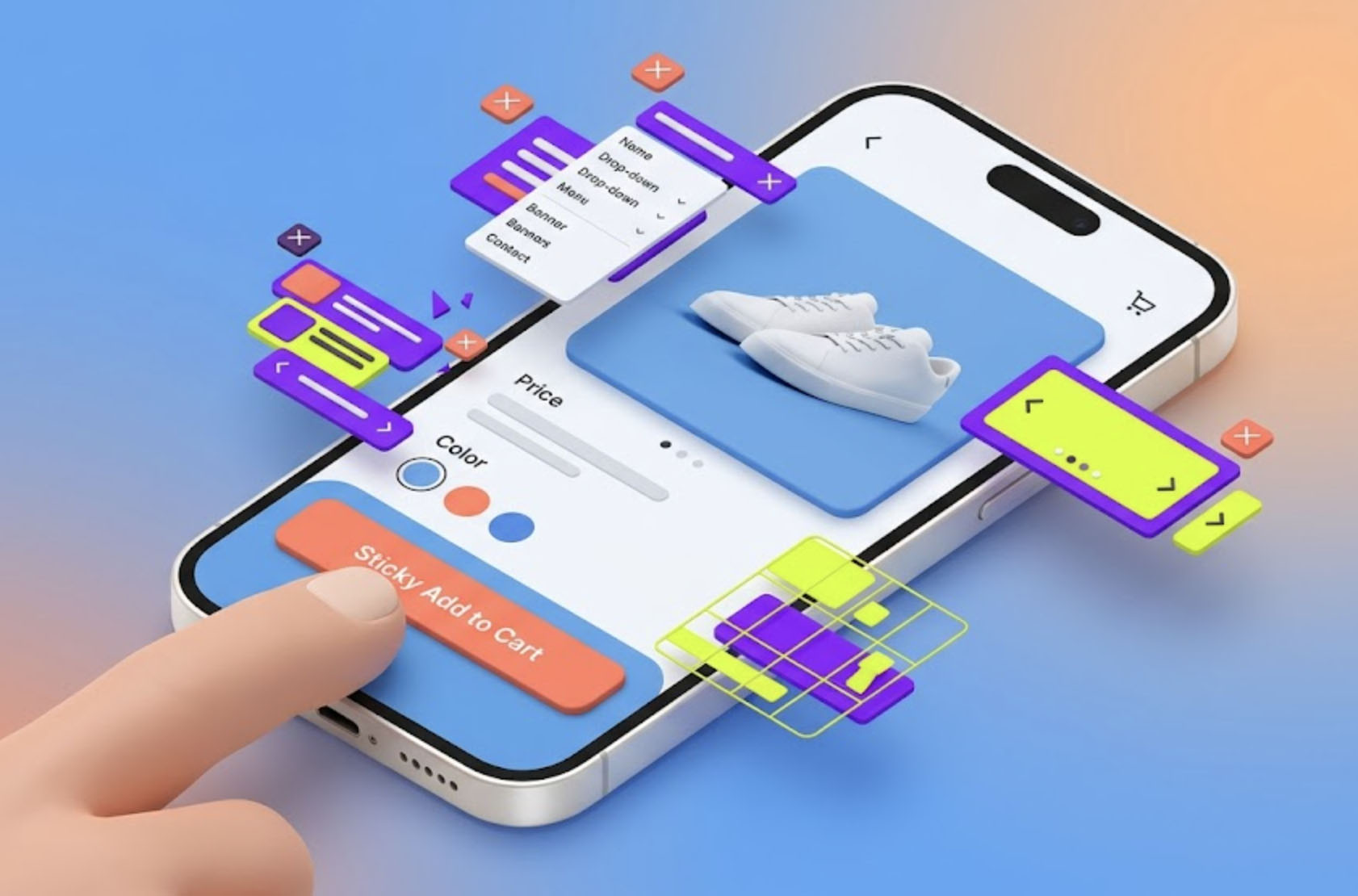
With over 70% of all e-commerce traffic now originating from mobile devices, optimizing your Shopify store for smartphones is no longer a secondary task—it is your primary task.
Yet, many merchants approach mobile web design by simply shrinking their desktop layout into a smaller screen, adding interactive elements to make it feel "app-like." Unfortunately, from a professional UX and CRO perspective, many of these design embellishments achieve the exact opposite. They introduce visual friction, stall decision-making, and ultimately drive users to close the tab.
Let’s look at the hard data and cognitive psychology behind the mobile "add-ons" that are actively killing your Shopify conversion rates, and how to fix them.
1. The Interstitial Overlay (The Aggressive Pop-Up Trap)
The Offense:
A user arrives from an Instagram ad, eager to see your product. Within 1.5 seconds of landing, an email newsletter pop-up blocks the entire screen, followed closely by a cookie consent banner.
Why It’s Killing Conversions:
On a desktop, closing a pop-up is a minor inconvenience. On a mobile viewport, finding a tiny, 12px grey ✕ button hidden in the upper-right corner requires precision finger targeting. If a user misclicks, they accidentally trigger a text field or link, causing intense frustration. Furthermore, aggressive pop-ups can negatively impact your mobile SEO performance.
The Fix:
- The Rule of Delay: Never trigger a pop-up on mobile immediately upon landing. Wait until a user scrolls at least 60% down the page or exhibits exit-intent signals.
- The In-Line Alternative: Replace entry pop-ups with a subtle, sticky Announcement Bar at the top of the viewport or embed a clean newsletter sign-up block directly within the homepage layout.
2. Multi-Column Grid Overload on Product Listing Pages (PLPs)
The Offense:
To showcase as many items as possible without requiring the user to scroll endlessly, merchants often crowd their Collection Pages into three- or four-column grids on mobile.
Why It’s Killing Conversions:
When images are squeezed into tiny columns on a mobile screen, the product details vanish. Text like titles and pricing wrap awkwardly across multiple vertical lines, creating visual noise. Users cannot appreciate your product aesthetics at a glance, forcing them to either squint or click into multiple individual product pages just to see what the item actually looks like. This increases the interaction cost and leads to abandonment.
The Fix:
- The Two-Column Sweet Spot: For highly visual niches (fashion, jewelry, home decor), a clean two-column layout provides the ideal balance between information density and image quality.
- The Single-Column Power Layout: If your product relies heavily on fine details, unique textures, or secondary information, use a single-column card layout that lets your high-end media shine.
3. The Stationary Add-to-Cart (ATC) Button Floating in No-Man’s-Land
The Offense:
The Product Detail Page (PDP) features long-form descriptions, sizing charts, and reviews. As the mobile user scrolls down to read this content, the primary "Add to Cart" button slips off the top of the screen, staying fixed in its initial position.
Why It’s Killing Conversions:
Mobile shopping is highly impulsive. If a user reads a stellar review halfway down the page and decides to buy, they have to manually scroll all the way back to the top to find the CTA. This tiny delay gives them time to reconsider, introducing friction right at the moment of peak purchase intent.
The Fix:
- The Sticky Footer CTA: Implement a persistent, low-profile Sticky Add to Cart button that docks cleanly at the very bottom of the mobile screen once the native product button scrolls out of view.
- Thumb-Zone Accessibility: Ensure this sticky button spans the full width of the screen, making it effortlessly reachable within the natural resting zone of the user's thumb.
4. Desktop-Style Filters and Mega Menus Mapped to Mobile
The Offense:
Using multi-layered, hover-triggered desktop drop-down menus or displaying an extensive, un-collapsed list of sidebar filters (by size, color, price, material) directly on the mobile collection screen.
Why It’s Killing Conversions:
Hover states do not exist on touchscreens. When a mobile user taps a desktop-optimized multi-level menu, it often misfires, closes abruptly, or redirects them to the wrong page. Similarly, un-collapsed filters create an endless wall of checkboxes that forces your actual products miles below the mobile fold.
The Fix:
- The Slide-Out Drawers: Move your main navigation and product filters into clean, dedicated slide-out drawers (off-canvas menus) triggered by prominent, thumb-friendly tap targets.
- Accordion Collapse: Within the filter drawer, keep all categories collapsed by default. Users should only expand the specific parameters they care about (e.g., clicking "+" next to "Size").
5. Heavy Carousel Sliders and Video Hero Backgrounds
The Offense:
Autoplay image carousels containing 5 separate high-res banners, or uncompressed background videos loop-loading immediately on the mobile homepage banner.
Why It’s Killing Conversions:
Beyond the severe impact on mobile page load speeds over cellular data networks, mobile carousels suffer from incredibly poor engagement. Users browse fast; they rarely sit on your homepage for 10 seconds to watch a slider rotate. More importantly, swiping a carousel often conflicts with the user's natural vertical scrolling gesture, causing the interface to feel stuttery or unresponsive.
The Fix:
- The Static Hero Image: Replace mobile sliders with a single, high-impact static image coupled with a crystal-clear value proposition and one distinct CTA button.
- Static Asset Priority: If a video loop is absolutely critical for your brand storytelling, ensure it is heavily compressed, lazy-loaded, and stripped of audio tracks to save critical mobile processing power.
Summary: Designing for the Mobile Thumb
When optimizing a Shopify store for mobile devices, your primary filter should always be: Does this element make it easier for a single thumb to browse and buy?
If a feature serves only to decorate the background, create artificial urgency, or replicate a desktop interaction, it is simply noise. Strip away the design bloat, widen the tap targets, and prioritize speed. In mobile e-commerce, the cleanest path to checkout always wins.